As most of you should already know, the Realme brand has its roots in OPPO, which is itself owned by BBK Electronics. The Realme 1, the first smartphone under the Realme brand from before the company spun off from OPPO, ran ColorOS, a customized Android software designed by none other than OPPO itself. To differentiate their devices from their parent company, Realme introduced a new interface called “Realme UI” which is built on top of Android 10. However, the OEM has no plans to deliver the Realme UI/Android 10 update to the Realme 1, although the phone is still getting regular security updates on its Android 9 Pie-based ColorOS 6 firmware.
As expected, though, XDA’s aftermarket development community has come to the rescue. XDA Senior Member Invincible-Venom has compiled an unofficial version of LineageOS 17.1 for the Realme 1 which brings a close-to-stock Android 10 experience to owners of this phone. The availability of the kernel source code as well as the existence of an official bootloader unlocking method certainly helped the developer in this venture. Apart from a few quirks such as broken USB tethering and SELinux set to permissive (which is a major security issue we hope to see resolved soon), the current builds can be used as a daily driver.
It is worth mentioning that this particular build of LineageOS is a source-built ROM and not a Generic System Image (GSI), though arguably many custom ROMs these days have roots in GSI. Both the CPH1859 and the CPH1861 variants of the Realme 1 are supported by the developer. You need to flash the latest version of the stock firmware (CPH1861EX_11_C.49) and use the TWRP compiled the same developer before installing this ROM. There are some known incompatibility issues with Magisk, so users are advised to stick with Magisk versions 20.1 or 20.3.
The associated device tree and the vendor tree are available on GitHub. A built-in OTA updater was initially planned as well, but the developer has abandoned it for the time being. Now that a somewhat-stable version of LineageOS 17.1 for the Realme 1 is here, we hope to see the fruits of this effort available to the community in the near future.
TCL recently launched the TCL 10 series of devices in the United States for under $500. The 10 series is TCL’s second attempt at selling self-branded smartphones after the TCL Plex. Available now are the TCL 10L and TCL 10 Pro, both of which we reviewed a few weeks ago, but the company also announced the TCL 10 5G, which is poised to be one of the cheapest 5G smartphones in the U.S. when it launches later this year. Thanks to a new listing on Google’s Android Enterprise Solutions Directory, we’ve learned that there may be another new device in the TCL 10 series, the TCL 10 SE.
Earlier today, the TCL 10 SE made was added to Google’s Android Enterprise Solutions Directory. This is a list of devices that Google maintains that people can use to find out what enterprise features a particular device supports. Not every device added to this list is officially certified as an Android Enterprise Recommended device, though.
In any case, according to the filing, the TCL 10 SE has a 6.5-inch display, 4GB of RAM, 128GB of storage, and runs Android 10. It also has a fingerprint scanner and supports NFC connectivity. The filing also includes a (rather low-resolution) image which gives us a glimpse at the design of the smartphone. Based on the render, we can see that the TCL 10 SE will have a pretty thick chin at the bottom and a teardrop-shaped display notch cutout. The device shown in this render doesn’t match the TCL 10L, 10 Pro, or 10 5G, so we’re pretty certain that it’s a new device entirely. The “February 26” and “20:20” time shown on the lock screen widget suggests that TCL may have intended for this device to be shown off at MWC 2020 followed by a launch shortly after, but obviously, things haven’t gone as planned this year.
The reason we think the TCL 10 SE is headed to Europe is because of the phone’s model number, T766H_EEA. The ‘EEA’ at the end of the model stands for European Economic Area and is a common code for phone OEMs to designate devices or software builds made for Europe. As for evidence suggesting this device will support 5G connectivity, in the screenshot uploaded to Google’s Android Enterprise Solutions Directory, we can see a 5G icon in the statusbar. As this is an official render of the device from TCL, we don’t think the placement of a 5G icon is an accident, though anything is a possibility.
The design of the TCL 10 SE does seem to be very budget-oriented, so while we aren’t sure about its pricing or chipset, it could be running something like the rumored 5G Snapdragon 6-series chip (via GSMArena) or the MediaTek Dimensity 800, although no smartphones have launched with the latter chipset outside of China yet.
We reached out to TCL about this listing and a TCL spokesperson gave us the following statement: “We cannot comment on rumored or unannounced products.”
TCL may have quite an interesting device in the works if they manage to keep the price really low. 5G as a technology is here to stay, and any phone helping to democratize the technology is welcome. TCL has done a great job of that with the TCL 10 5G which will be launching for around €400 very soon.
In a bid to make Chrome easier to use on large screen devices, Google replaced Chrome Home with the Chrome Duplex split toolbar UI early in 2018. The new UI, which was later renamed Chrome Duet in order to avoid confusion with Google Duplex, moved some UI elements closer to the bottom of the display in order to make them easily accessible on modern devices. The latest update for the feature arrived late last year when Google started testing a new Duet-friendly UI for tab groups. However, it now seems like Google’s Duet experiment wasn’t successful as the company has done away with it in the latest Chrome beta release.
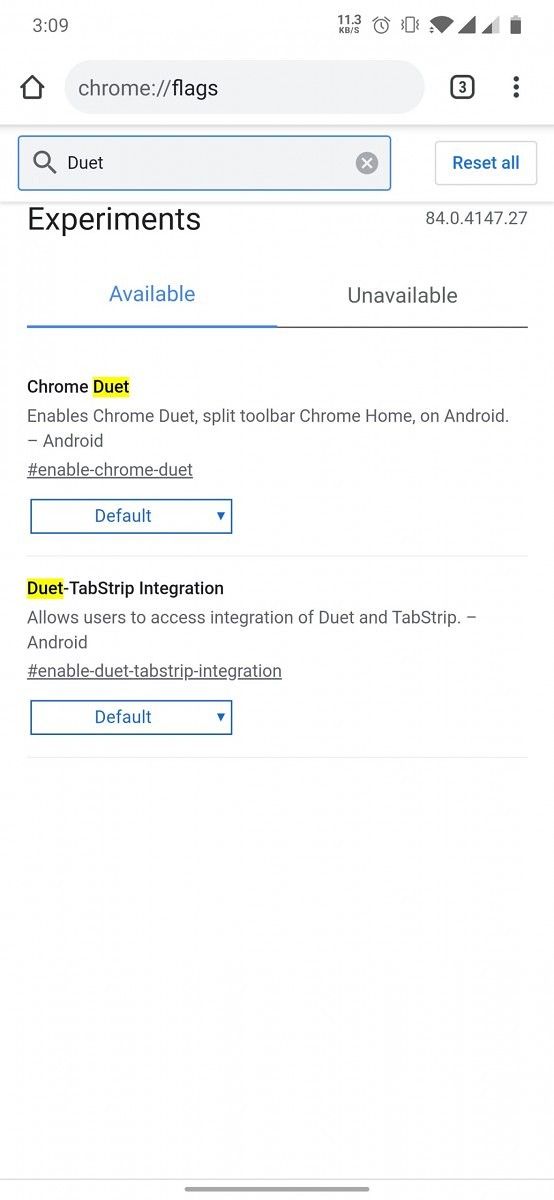
As per a recent report from Android Police, the Chrome 84 beta release has removed the two feature flags for Duet: #enable-duet-tabstrip-integration and @enable-chrome-duet. The flags can still be seen in the flags list in Chrome 84 if you enable #temporary-unexpire-flags-m82 and #temporary-unexpire-flags-m83, but enabling them doesn’t make any difference. The unexpire flags also have a description that reads, “These flags will be removed soon,” which suggests that Chrome Duet has been completely shelved by the company.
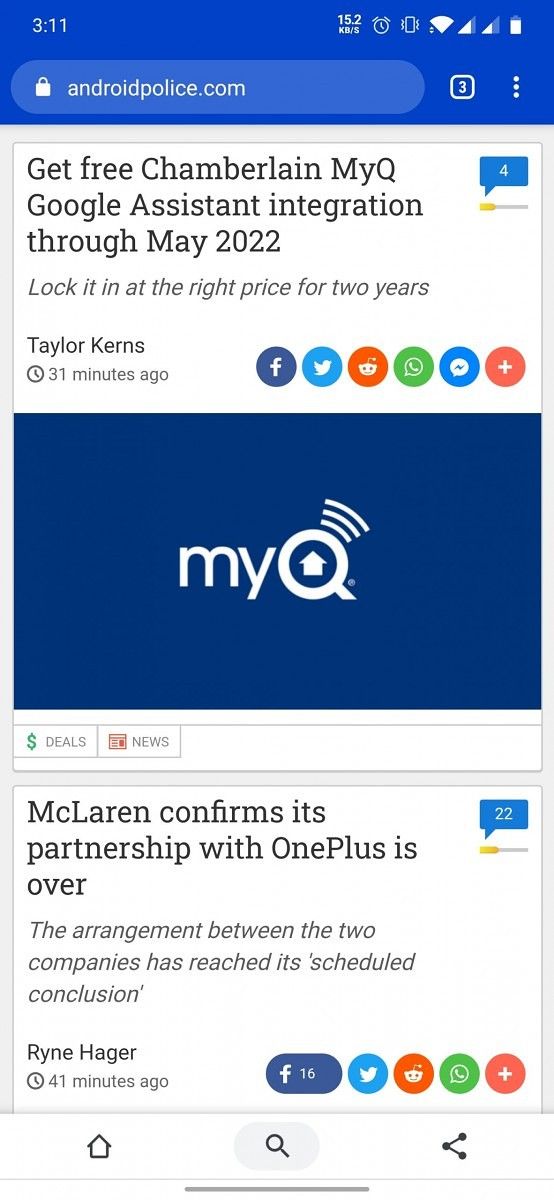
For the unaware, Chrome Duet in its current form adds a toolbar to the bottom of the screen that includes a few shortcut buttons. While the address bar remains at the top of the screen, it can be opened by tapping the search icon in the bottom bar. These features make Chrome slightly easier to use on large devices. However, with the latest Chrome beta update, users won’t be able to enable these features in the browser. It’s quite possible that Google might, once again, release a new UI layout for the purpose with a new flag. But for now, we have no information regarding any such upcoming changes.
One of the advantages of open source software is the ability to allow forks of the main projects to exist. These forks can then take a different form to gain different features. If things go right, these changes and bug fixes can also make their way back upstream to the original project and then passed on to all other projects downstream that rely on it. Such is the beauty of open-source, and we are likely to see an example play out in a noticeable manner on our phones very soon. The code submitted upstream by the developer of the recently open-sourced Kiwi Browser will now make it easier for Chromium forks to enable extension support on mobile.
The Chromium browser is an open-source project that serves as the basis for a lot of web browsers, including Google Chrome, Microsoft Edge, Vivaldi, Brave, and Kiwi too. Most of these Chromium-based browsers offer a handful of additional features over the base, but there are some that radically change the experience. Kiwi Browser by XDA Senior Member arnaud42falls in the latter category, with features like a built-in content blocker, dark mode, background video playback, AMP skipper, and the fact that it was one of the first Chromium-based browsers for Android that supported Chrome, the other being Yandex Browser. Earlier this year, Kiwi Browser went open-source, allowing other Chromium projects to include the code that enables extension support into their own projects. At the time of the announcement, the developer had mentioned that they were already working with other browser developers to help them integrate some of Kiwi’s Browser functionality.
As spotted by Dinsan Francis, arnaud42 had started a bug report on the Chromium Gerrit in order to make it easier for Chromium-based projects to enable extensions. The code proposed in the bug report would make it easier for Chromium forks to enable extensions if they want to, without affecting Google Chrome for Android. The submitted code has not been merged yet into Chromium, and to clarify, there is no evidence to suggest that Google will be enabling extension support for Chrome for Android. But still, there are “at least three variants of Kiwi” that are being worked on with extensions support.
As a result we increase maintainability for downstream players who do support extensions or may be tempted to do so (example: Microsoft, and of course, Kiwi Browser, but there are at least 3 variants of Kiwi that are getting born right now, including with a very very large OEM)
We asked the developer to elaborate on the projects being referred, but they mentioned that they would be unable to name them. Irrespective of the exact variants, this presents itself as good news for consumers as they will soon have more browser alternatives with extension support, and in turn, would prompt others to also consider its implementation.
Interestingly, the Chromium Gerrit commit that would change the Chromium build process to make it easier to rebase Chromium with extensions enabled was submitted by a Samsung engineer. However, we do not think Samsung would be the “large OEM” mentioned by arnaud42 because the Samsung Internet browser already supports extensions, albeit in a limited capacity as you can only install approved extensions from the Galaxy Store. Samsung would still be interested in the code that arnaud42 submitted, because it would make it easier for them to rebase the Samsung Internet browser with newer Chromium versions, such as how they recently updated Samsung Internet from Chromium 71 to Chromium 79.
Following the launch of the Redmi Note 9 series earlier this year, Xiaomi’s budget-friendly sub-brand is now prepping up to launch the entry-level Redmi 9 series. While Xiaomi hasn’t released any official information about the Redmi 9 series yet, we do have some key details about the upcoming devices, including live images, specifications, and pricing. Here’s everything we know about the Redmi 9 series so far:
Leaked live images
Live images of the upcoming Redmi 9 have surfaced online, revealing some key aspects of its design. The images in question were shared by leakster Sudhanshu Ambhore (@Sudhanshu1414), which reveal that the Redmi 9 will feature a vertically-oriented triple camera setup on the back with the fingerprint sensor right underneath.
Here’s an exclusive live image of Redmi 9 with some key specs from a Chinese source
MediaTek Helio G80
13MP Main + 8MP Wide + 5MP Macro + 2MP Depth
Purple & Green color options (atleast 2)#Redmi9pic.twitter.com/X43WMx95VF
The device will also feature a fourth sensor within a separate module with the LED flash. Both the primary and secondary camera modules are within a circular design element on the back, which looks to have a different finish compared to the rest of the back panel.
The images showcase two color variants of the device — purple and green — and also shed light on the camera specifications. As per the leakster, the Redmi 9 will feature a 13MP primary sensor, an 8MP wide-angle camera, a 5MP macro camera, and a 2MP depth sensor.
Additionally, another leaked image of the Redmi 9 has been shared on Chinese social media platform Weibo, which features the same camera module. However, the device itself is enclosed in a case in the third image, so we don’t get a clear look at its design.
Redmi 9 series certification listings
Along with the aforementioned live images, the Redmi 9 series has also been spotted in Bluetooth SIG and Wi-Fi Alliance certification listings. As per the listings, the devices in the Redmi 9 series will have the following model numbers:
M2004J19AG
M2004J19PI
M2004J19C
M2004J19I
M2004J19G
Even though the listings don’t reveal much about the specifications, they do confirm that the devices will run MIUI 11 based on Android 10 out of the box and that some variants of the Redmi 9 will include NFC support.
Leaked specifications
XDA Senior Member and noted Xiaomi tipster kacskrz tells us that the Redmi 9 goes by the code-name “lancelot”, with other variants also going by the code-names “galahad” and “shiva.” All of the three variants are based on MediaTek chipsets, with Sudhanshu claiming that the device will be powered by the MediaTek Helio G80 chipset.
In a separate tweet regarding the devices, he also reveals the rumored specifications of all the devices in the Redmi 9 series, along with their respective pricing. As per the tweet, the Redmi 9A will feature the MediaTek Helio G25 chip, coupled with 3GB RAM and 32GB storage. The device will feature a 5,000mAh battery and will be priced between €100-120.
The Redmi 9C, on the other hand, will be available in two variants — with and without NFC — and will be powered by the MediaTek Helio G35, coupled with 3GB RAM and 64GB storage. The device will also feature a 5,000mAh battery and will be priced between €130-150. And finally, the regular Redmi Note 9 will be powered by the MediaTek Helio G80, along with 4GB RAM and 64GB storage. The device will feature a 5,000mAh battery and will be priced between €160-180.
Several Geekbench listings for “lancelot” corroborate these specifications and further reveal that at least one model of the device will have 3GB of RAM. Kacskrz also revealed that he has spotted evidence of an EEA/RU firmware for “lancelot,” which means that the device might be launched internationally.
Imagine you’re scouring the internet for cool wallpapers and you come across a picturesque landscape. It has everything; a lush green forest, a pristine lake with a tiny island, snow-capped mountains in the background, and a thick cloud cover with sunlight seeping in through the gaps. You immediately download the image, set it as your phone’s wallpaper, and boom! Your Android phone gets stuck in a bootloop. Sounds unlikely, doesn’t it? Well, it’s true for this particular wallpaper.
WARNING!!!
Never set this picture as wallpaper, especially for Samsung mobile phone users!
It will cause your phone to crash!
Don’t try it!
If someone sends you this picture, please ignore it. pic.twitter.com/rVbozJdhkL
The wallpaper was recently shared on Twitterby renowned Samsung leakster Ice Universe, who claimed that the wallpaper “will cause your phone to crash!” Despite their warning, several users downloaded the wallpaper to check if it actually did do anything on their phone and they were met with the following results:
This is the most fucking bug I’ve ever seen. I even tried in safe mode but still no help. Had to reset app data. Shitsung do something pic.twitter.com/ASeHfNNGYI
Huh, tested this in an emulator. Crashes SystemUI. Checked for any odd issue with the image’s header, didn’t notice anything off from my limited knowledge of JPEG. It also ends properly. pic.twitter.com/s2m0q0WNqo
According to Davide Bianco, lead developer of the AOSP-based custom ROM “POSP”, this particular wallpaper causes some Android devices to crash as it makes use of the RGB color space, instead of the sRGB color space that is supported natively on Android. Bianco has submitted a patch to AOSP that reportedly fixes the issue and the description of the patch states that “The issue occurs when the user tries to set as wallpaper an image that is not sRGB. What happens is that variable y value is higher than the histogram bounds, making SysUI crash. One possible fix is to limit y value to be always less than 256.” Along with Bianco, the developers behind the popular LineageOS custom ROM have also come up with a unique solution to the problem. You can check out the patch description over on the LineageOS Gerrit by following this link.
We strongly recommend against using this image as your wallpaper under any circumstances. In case you have already used it and your device is stuck in a bootloop, please check the instructions below on how you may be able to recover your device.
A report from 9to5Google on the matter further reveals that the issue is limited to devices running Android 10 or older and it doesn’t affect devices running the Android 11 Developer Preview. This is due to the fact that on Android 11, the system converts the color space if it’s not supported, but on Android 10 it does not. Which means that this isn’t an issue with this particular image and could be caused by other images using the RGB color space.
Do note that while the issue doesn’t affect all Android devices, we strongly recommend against trying the wallpaper on your phone. In case you try it anyway, you might be able to recover your device by either resetting it completely or by entering safe mode and changing the wallpaper. But since some users over on Twitter weren’t able to recover their devices using the aforementioned methods, it would be best if you don’t use the exact image as your wallpaper. If you really like the wallpaper, just take a screenshot of the image and use that as your wallpaper instead.
Android 10 has been out for nearly 9 months now, but one of its best features, desktop mode, is still widely unknown. That’s because it’s technically hidden in Android 10, requiring a development flag to be enabled as well as support built-in to the stock launcher app. Thankfully, the developer of Taskbar has figured out a way to make Android 10’s desktop mode far more useful, bringing a Samsung DeX-like experience to some devices.
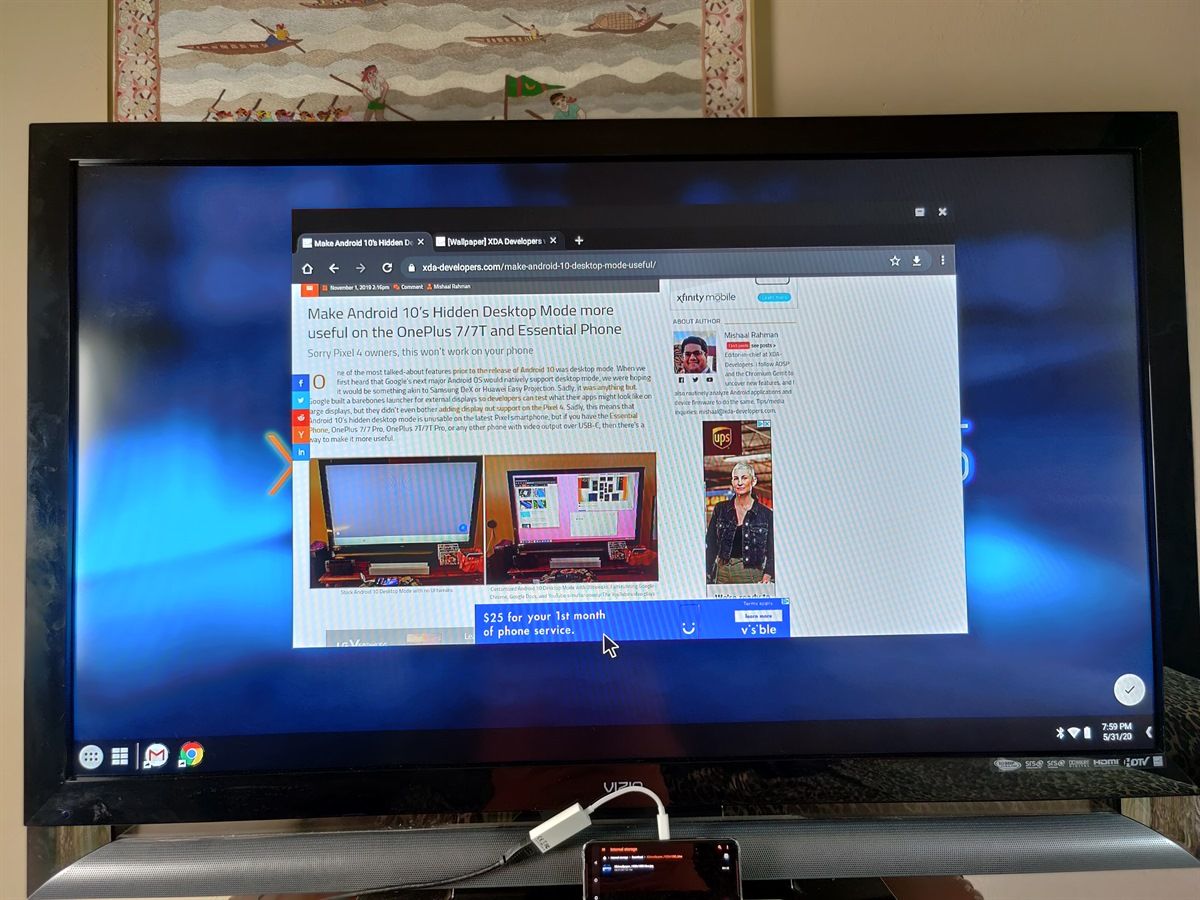
For some background, Android 10 added a “Secondary Launcher” activity to Launcher3, the AOSP launcher app that Google’s Pixel Launcher and many other OEM launcher apps are derived from. When an Android device with support for display output is hooked up to an external display, this Secondary Launcher activity is shown on the external display. However, because this Secondary Launcher is extremely barebones, it’s not useful to use as a productivity tool. Third-party app developers figured out that it’s possible for their own launcher apps to replace the stock launcher on the external display, and that’s exactly what XDA Senior Member farmerbb has implemented in Taskbar 6.0.
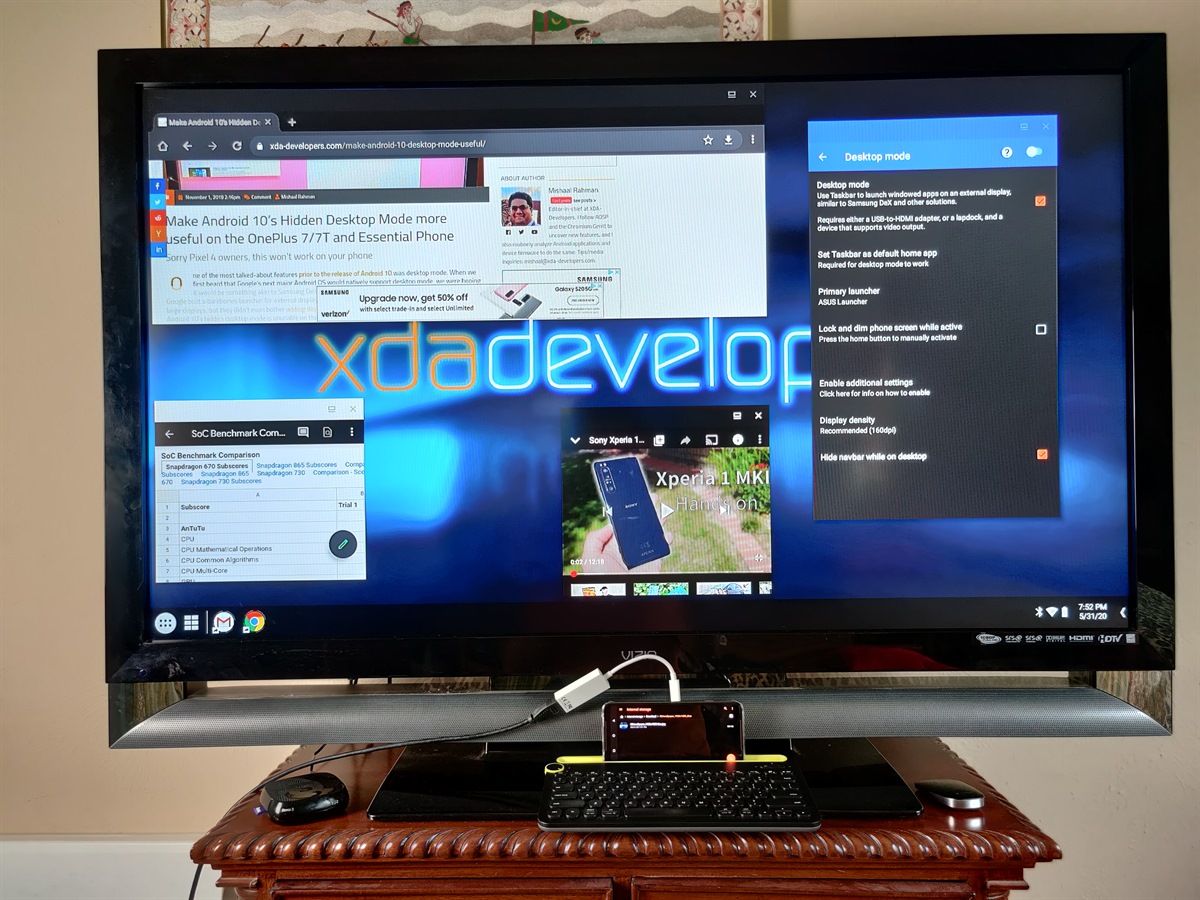
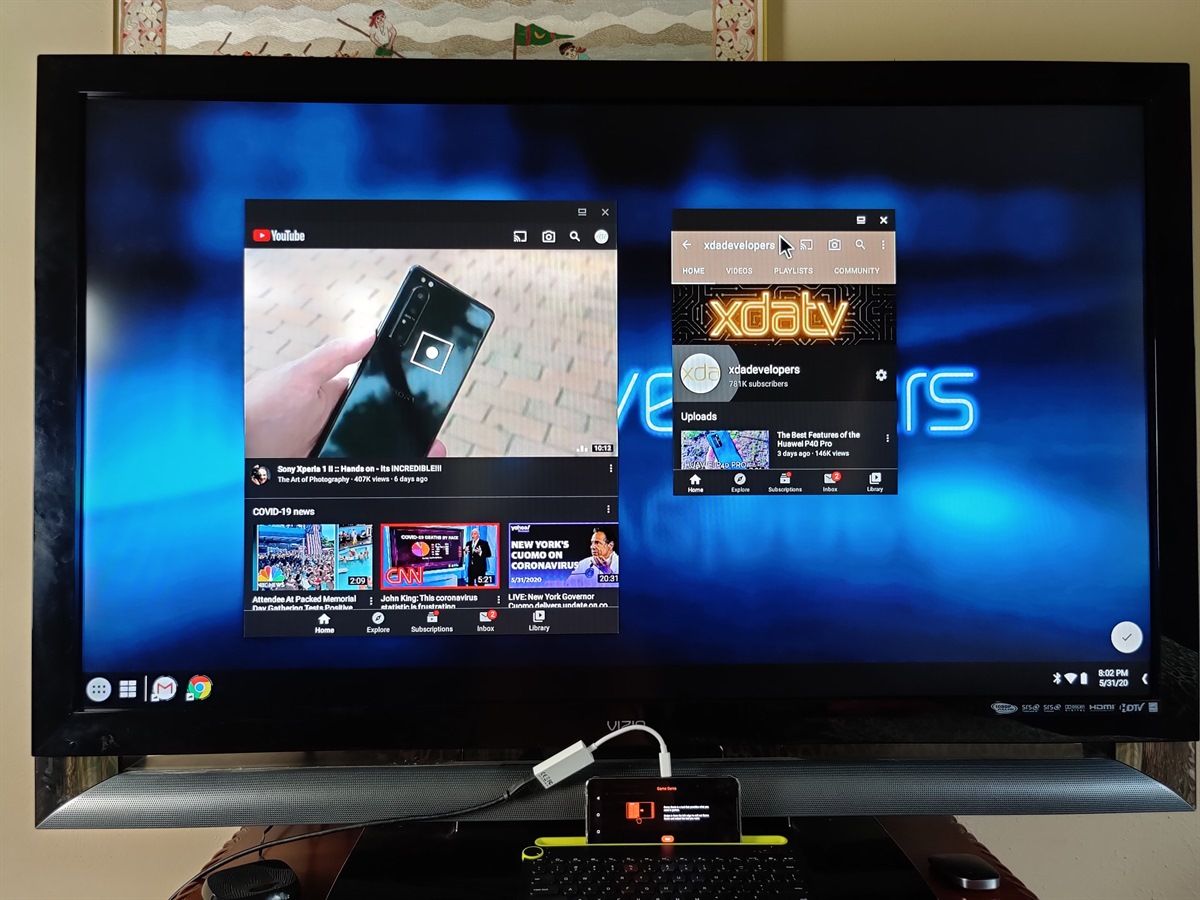
Taskbar is an open-source Android app that puts a floating start menu and recent apps tray on top of any screen. Since it supports launching Android apps in freeform multi-window, it even comes pre-installed on Bliss OS, a popular Android port for x86 PCs. Back in early November, farmerbb released a fork of the open-source Lawnchair launcher with Taskbar integrated into it. This gave us an early look at what Android 10’s hidden desktop mode could look like with some development effort, but there were some glaring issues that needed fixing. The desktop mode user experience needed fixing so that freeform multi-window behavior worked as you would expect, the setup process needed to be cleaned up so you could control the DPI/UI without needing another app, and a better solution had to be found so that you wouldn’t have to change your default launcher. Now, farmerbb has updated Taskbar to version 6.0 to address all of these issues.
Desktop Mode with Taskbar 6.0
Setting up Taskbar’s desktop mode is quite easy:
In Developer Options, turn on “enable freeform windows” and “force desktop mode” and then reboot your device. (The latter may be unavailable on some OEM software like ZenUI/ROG UI, but don’t worry if it’s not there.)
Install Taskbar 6.0 (older versions won’t work) from Google Play.
Open Taskbar’s settings and go to “Desktop Mode.” Enable it and grant the app permission to “display over other apps” as this is required for the app’s floating start menu to appear. Then, set the app as your default home app. Don’t worry, though, as the next prompt will ask you to set your preferred/primary launcher app, so Taskbar won’t be hijacking your home screen. (Note that on some devices, changing the default launcher will disable Android 10’s full-screen navigation gestures.)
Next, I highly recommend you follow the instructions to “enable additional settings” for desktop mode. This will allow you to lower the DPI so UI elements aren’t enormous on the external display, to hide the navigation bar, and to even dim the phone’s screen to save battery life while it’s connected to the external display. You’ll have to set up ADB access on your PC and run the following command:
adb shell pm grant com.farmerbb.taskbar android.permission.WRITE_SECURE_SETTINGS
(If you are using Taskbar’s “Donate” version, replace “com.farmerbb.taskbar” with “com.farmerbb.taskbar.paid” in the above command.)
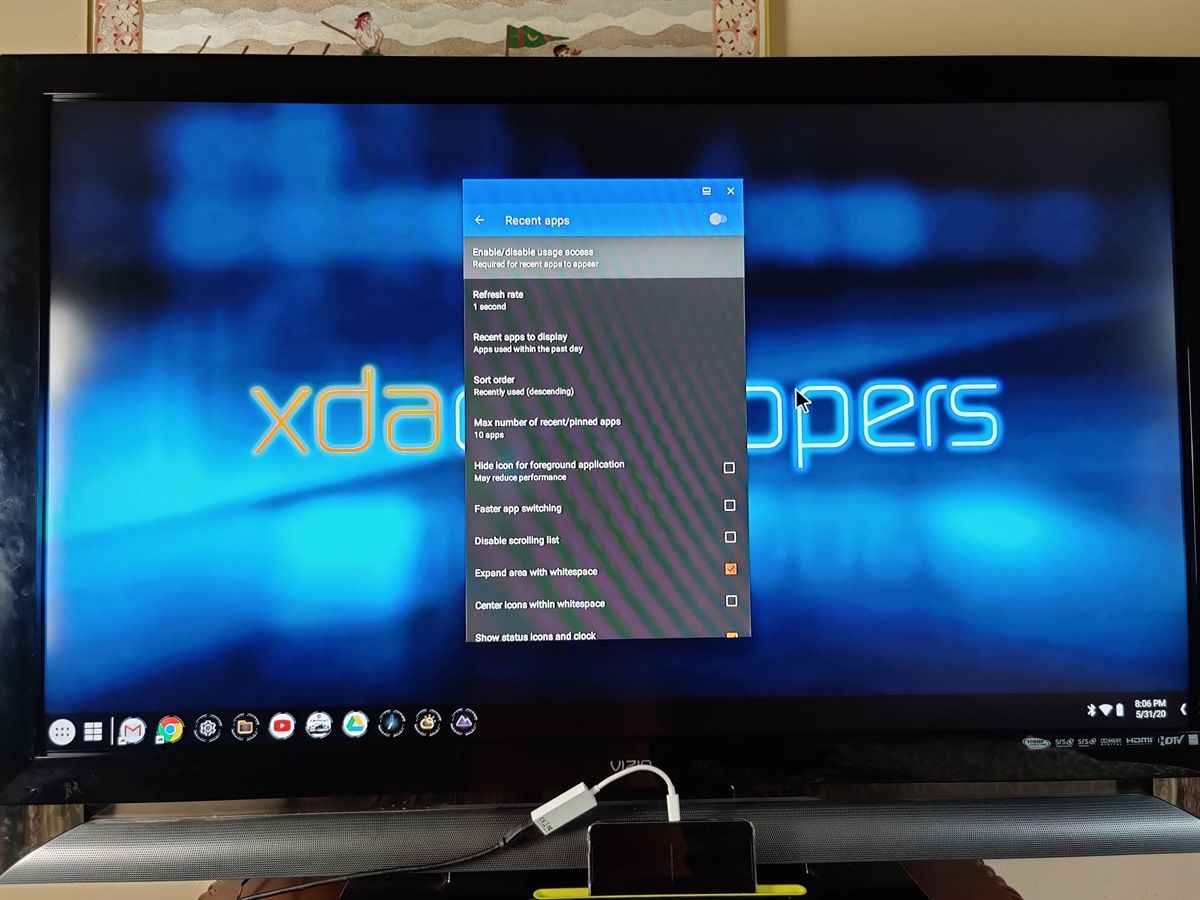
Finally, check to make sure that “usage access” has been enabled for Taskbar. Doing so will allow the app to show a row of your recently used applications in the start menu.
Now, simply connect your phone to your external display using a USB Type-C to Type-C cable (if your external display supports Type-C input) or via a USB Type-C to HDMI adapter.
Once connected, you can use the start menu to launch apps, search for apps, add app icons to the home screen, open some system menus, and more. You can tap the icon next to the start menu to add/show widgets. You can launch multiple instances of windows, and in some cases like Google Chrome, have multiple tabs.
There are loads of other options and changes in Taskbar 6.0, so I recommend you read the full changelog available here.
Display Output on Android – Sadly Still Limited
Who might this be useful for? Samsung, Huawei/Honor, and LG offer their own desktop mode experiences, so there’s you won’t find much use out of Taskbar’s desktop mode if you own a smartphone from one of those brands. ASUS, OnePlus, Essential, Google, and Xiaomi don’t offer their own desktop mode experiences, so if you’re on at least Android 10 on a device from one of these brands, then you may find Taskbar’s desktop mode feature to be useful. If you want a desktop mode experience to be more productive, then I recommend you use a Bluetooth keyboard and mouse. If you have a portable external monitor/laptop chassis like the NexDock 2, then you’ll have an even better experience with Taskbar.
Keep in mind that in order to actually make use of this feature, your smartphone must support display output. Qualcomm’s latest Snapdragon 800 and 700 series chipsets natively support DisplayPort Alternate Mode over a USB 3.1 Type-C port, but some vendors (like Google) have disabled this functionality on their smartphones. If your device doesn’t support DisplayPort Alternate Mode, then you may have luck using a DisplayLink-certified adapter and the DisplayLink Presenter app to mirror the phone’s display. Screen mirroring using a DisplayLink adapter isn’t as ideal as native desktop mode through a standard connector, but it’s better than not having any display output at all! Fortunately, Taskbar can still be used if you’re just mirroring your phone’s display so long as the app is set as the default launcher, but you’ll have to use the developer’s SecondScreen app to change the resolution and density.
The biggest downside to desktop mode on Android right now is the limited app support. Even though Samsung and Huawei have both offered desktop mode experiences for years and sell millions of smartphones a year, there’s not a lot of demand from users to support desktop mode. That means that a lot of Android apps out there aren’t optimized for larger screens. Google wants to change that because broader Android app support for larger screens will benefit Chromebooks as well, but sadly, there’s still a long way to go before most Android apps support larger screens. Thus, while using Taskbar, you may notice that some apps refuse to run or just look terrible, and there’s not much you can do to fix that.
Download Taskbar 6.0
If you have one of the following smartphones, I recommend giving this app a try:
You can download Taskbar 6.0 from the Google Play Store link below or compile the app from its source code on GitHub. The app is totally free to use, but there’s a $1.99 donate version in case you want to support farmerbb’s development efforts.

 It is worth mentioning that this particular build of LineageOS is a source-built ROM and not a Generic System Image (GSI), though arguably many custom ROMs these days have roots in GSI. Both the CPH1859 and the CPH1861 variants of the Realme 1 are supported by the developer. You need to flash the latest version of the stock firmware (CPH1861EX_11_C.49) and use the TWRP compiled the same developer before installing this ROM. There are some known incompatibility issues with Magisk, so users are advised to stick with Magisk versions 20.1 or 20.3.